
How to download your photos using Pixieset
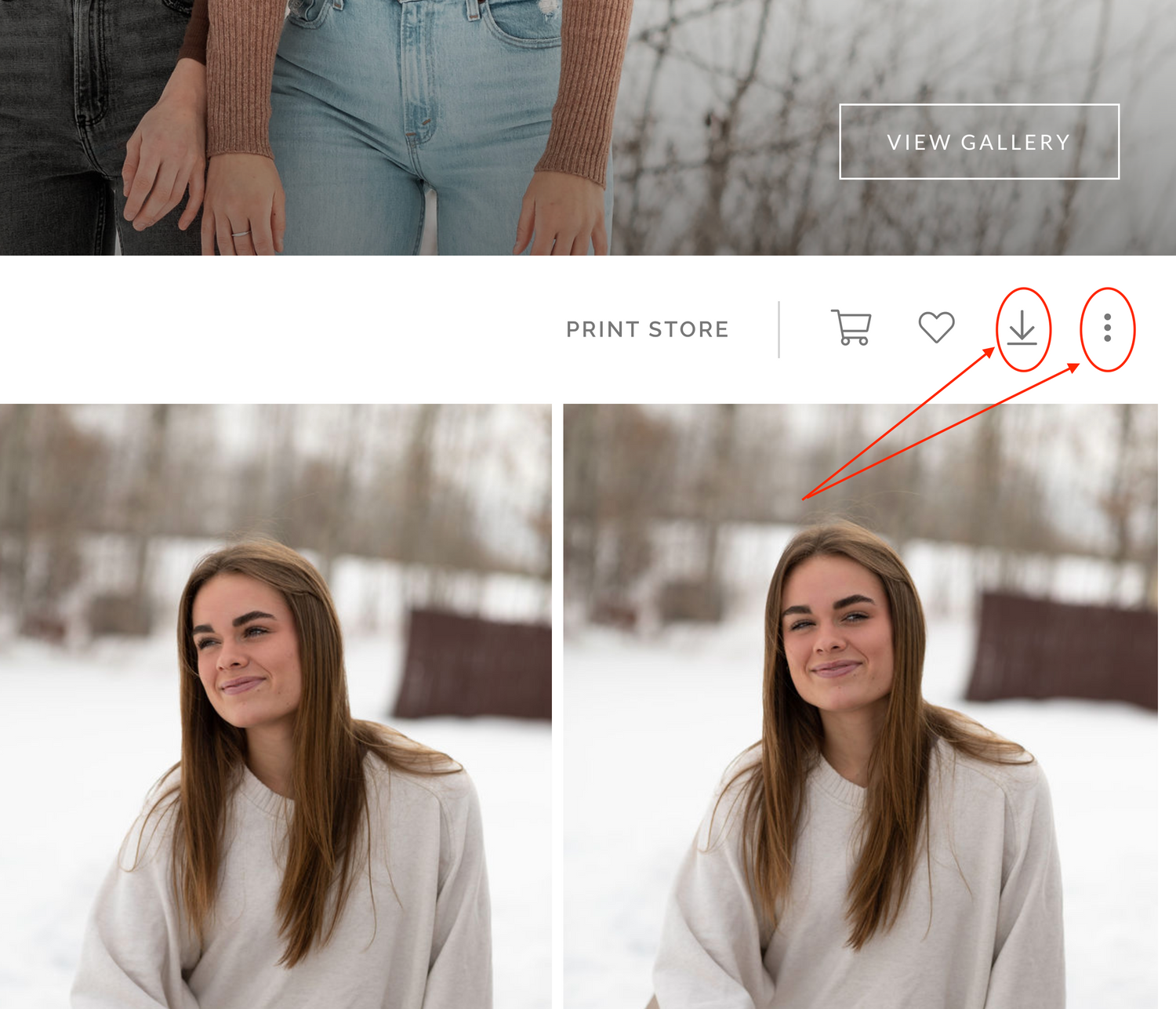
Downloading your images is as simple as a couple of clicks. The downward arrow is the download button! Also the three little dots next to the the arrow. Follow these easy steps to start downloading your images. The best way to download your images is on a desktop, but a phone works as well.
Instructions to Download
- STEP 1: Open your Pixieset Gallery. Once you photos are ready, you will receive an email link with a password and/or PIN code.
- STEP 2: Click on the DOWNLOAD icon shown top right of the Gallery View(which looks like an arrowing pointing downwards!)
.
- STEP 3: Enter your email address and/or download pin where prompted.
- STEP 4: Confirm the set or individual photo you wish to download along with the download size and location, ie to your machine or Dropbox or Google Photos (which are both free cloud services!)
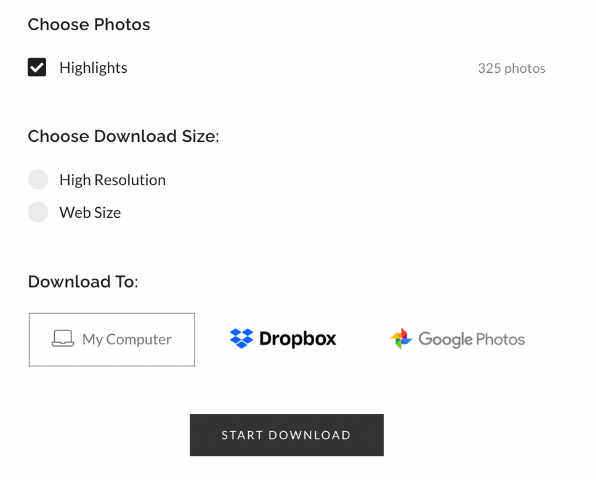
If you choose to download to your computer, the email address provided will be used to notify you when your .zip file of images is ready to be downloaded, if you prefer not to wait on the download page for this to complete. This email will also include the link you need to access their images and download the .zip file to your computer, which you can then extract.
If you selected the Dropbox or Google Photos cloud options, the images will be available to view directly from your account.
I would advise downloading your gallery in both high resolution and web size. Web size images are great to share on social media and by email but if you are looking to print, I would advise you to use the high resolution images.
I do sell Professional Prints and Wall Art so feel free to ask and I can advise accordingly.
Hope this helps and enjoy!
Kerby